
What is a Shopify Collaborator Account?
A Shopify Collaborator Account lets a trusted technology partner access a merchant’s Shopify admin without consuming one of the store’s staff user seats. For Haleria, this access can help our team review Shopify settings, troubleshoot integration issues, confirm permissions, and support store automation setup.
The store owner stays in control. A collaborator request must be approved by the merchant, the permission set can be reviewed before approval, and access can be suspended or removed whenever it is no longer needed.
For Shopify’s official permission details, review the Shopify Help Center guide to collaborator accounts.
Information Haleria Needs to Request Access
When Haleria needs collaborator access, the request process is fastest when you provide two pieces of information: your Shopify domain and, if your store requires one, the collaborator request code.
Your Shopify Domain
Your Shopify domain usually follows the format your-store.myshopify.com. To find it, open your Shopify admin and go to Settings > Domains.

Finding the Collaborator Request Code
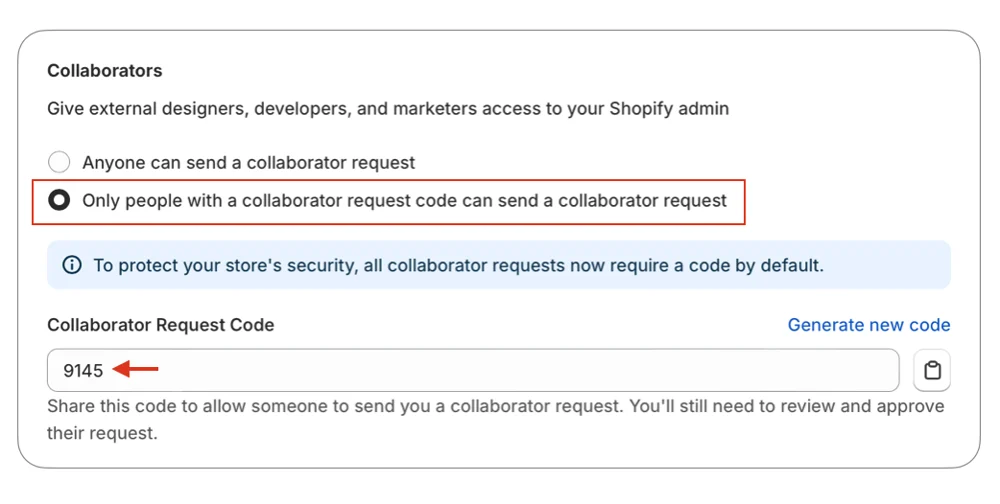
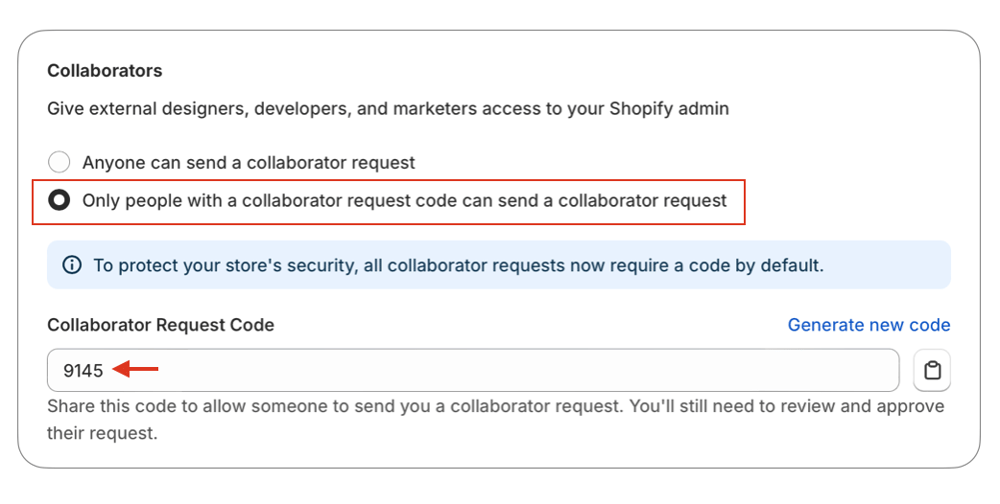
Some Shopify stores require a collaborator request code before a partner can submit an access request. To check whether your store requires one, go to Settings > Users and permissions in Shopify admin and review the Collaborators section.
If a request code is enabled, copy the code and send it to the Haleria support team with your Shopify domain. If your store does not require a code, Haleria can usually initiate the collaborator request with the Shopify domain alone.
Approving Haleria’s Collaborator Request
After Haleria submits the collaborator request, Shopify sends an approval notification to the store owner email address. The store owner can approve the request from that email or from the Shopify admin.
To approve from Shopify admin, go to Settings > Users and permissions, open the Collaborators section, and review the pending request. Haleria will request the permissions needed for the support or integration task, so the owner should review them carefully before approving.

Checking Whether Haleria Already Has Access
If you are not sure whether Haleria already has collaborator access, return to Settings > Users and permissions and check the Collaborators section. If Haleria is listed there, access has already been granted.
Keeping collaborator access visible in Shopify admin makes it easy to audit who can support your store. When the support work is complete, you can remove or suspend access from the same area.

Best Practices Before Granting Access
Collaborator access is designed to be controlled and task-specific. Before approving a request, confirm that the request came from the Haleria support channel you are working with, review the requested permissions, and make sure the access matches the support task.
- Use the Shopify domain: Send the
myshopify.comdomain rather than only the public storefront URL. - Share the request code only with trusted support: Treat the collaborator request code as store access information.
- Review permissions: Approve the permissions needed for the integration, troubleshooting, or automation setup.
- Remove access when finished: Shopify lets the store owner suspend or remove collaborator access at any time.
This workflow gives Haleria enough access to help with Shopify automation while keeping ownership and final approval with the merchant.