
Table of Contents
Updated October 8, 2026 · WhatsApp Business Platform & Shopify Guide
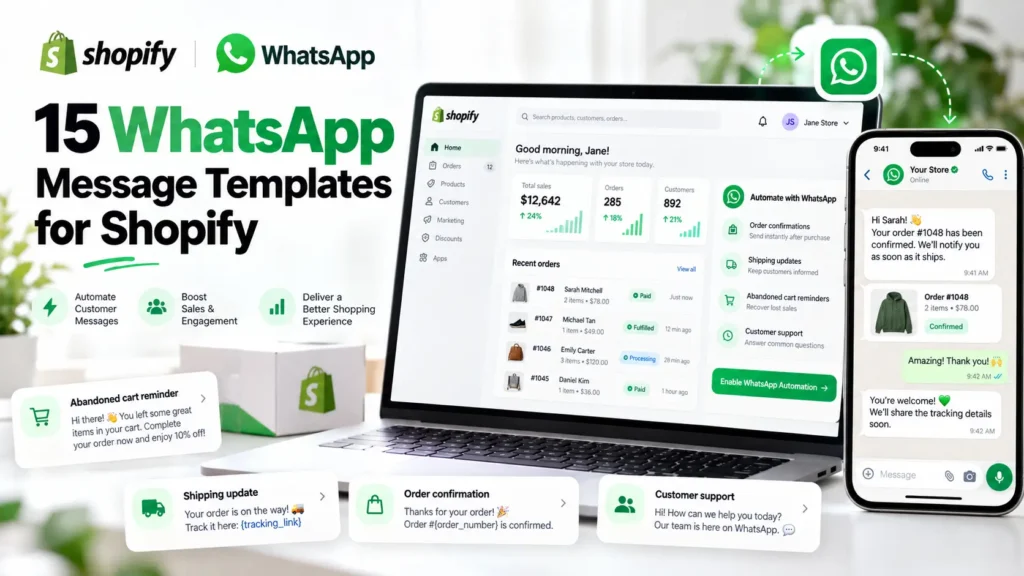
WhatsApp message templates are pre-approved messages businesses use to contact customers through the WhatsApp Business Platform. Shopify stores can use them for order confirmations, COD verification, shipping updates, abandoned cart recovery, and promotions. Meta requires an approved template when a business initiates a message or contacts a customer outside the 24-hour customer service window.
If you run a Shopify store, you’ve probably sent the same messages dozens of times: “Your order is confirmed,” “Your parcel is on its way,” or “Please confirm your COD order.”
Doing this manually gets frustrating as orders increase.
WhatsApp message templates help you handle these everyday conversations consistently while keeping customers informed.
In this guide, you’ll find 15 practical examples, Meta’s latest approval guidelines, common rejection reasons, and instructions for setting up automated messages for your Shopify store.
What Are WhatsApp Message Templates?
WhatsApp message templates are reusable, structured messages that Meta reviews before businesses use them through the official WhatsApp Business Platform. Once approved, they can be sent automatically when the relevant conditions and permissions are met.
For example, when Sarah orders a handbag from your Shopify store, she might receive:
Hi Sarah, thanks for shopping with Fashion Avenue! Your order #1045 has been received. We’ll notify you when it’s shipped.
Instead of manually writing the message, your store sends it using an approved template with personalized order details.
When do you need an approved WhatsApp template?
The important rule is the 24-hour customer service window.
- Within 24 hours of the customer’s latest message: Businesses can generally send permitted free-form replies.
- Outside that 24-hour window: An approved template is required.
- When your business starts the conversation: An approved template is required, even if the customer placed an order recently but hasn’t messaged you.
For example, a Shopify purchase doesn’t automatically open the WhatsApp customer service window. That window opens when the customer sends your business a WhatsApp message.
WhatsApp for Business
This is why stores using automated order confirmations, abandoned cart reminders, and delivery notifications need correctly configured WhatsApp templates.
Types of WhatsApp Templates: Meta Categories
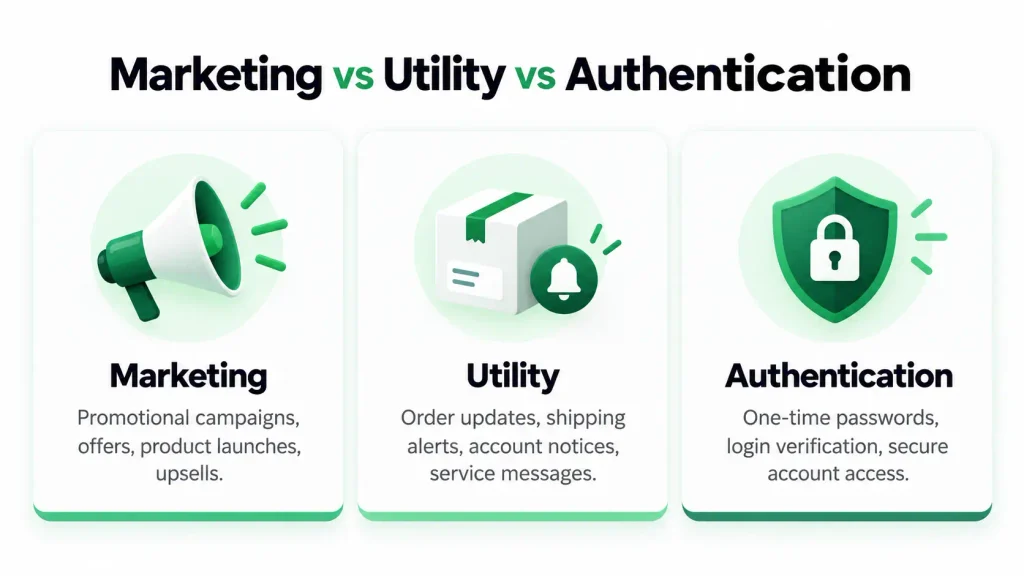
Meta divides WhatsApp message templates into three categories: Marketing, Utility, and Authentication. Each category serves a different purpose and affects messaging costs.
Service messaging is a fourth billing category, but it is not a fourth template category.
WhatsApp template categories and pricing comparison
| Category | Purpose | Shopify example | Pricing impact |
|---|---|---|---|
| Marketing | Encourage purchases and engagement | Abandoned cart or Eid sale | Charged at applicable marketing rate |
| Utility | Update customers about an existing transaction | Order confirmation or shipping | Charged at utility rate, with applicable free exceptions |
| Authentication | Verify customer identity | Login verification OTP | Charged at authentication rate |
| Service | Respond to customer inquiries | Customer support reply | Separate service-message pricing rules |
Meta charges delivered messages according to their category and destination market. The actual amount varies by country and may be affected by volume-based pricing or eligible free-entry exceptions.
WhatsApp API Pricing
1. Marketing templates
Marketing templates are messages intended to encourage customers to browse products, return to checkout, or make another purchase.
Common examples include:
- Abandoned cart reminders
- New product announcements
- Eid and seasonal sales
- Back-in-stock notifications
- Product review requests
For Shopify stores, marketing messages can be useful for re-engaging customers who have agreed to receive them.
However, you shouldn’t send promotional messages to everyone whose phone number you have.
2. Utility templates
Utility templates help customers complete or receive updates about existing transactions.
Examples include order confirmations, delivery updates, payment reminders for placed orders, and return status notifications.
A utility template should focus on what the customer needs to know.
For example:
Hi Sarah, your order #1045 has shipped. Track your parcel using the button below.
Adding “Shop our new collection and get 20% off” changes the nature of the message and may cause it to be classified as Marketing.
3. Authentication templates
Authentication templates are used to verify a customer’s identity, usually with a one-time password.
They can support account login or other approved verification processes.
Unlike ordinary marketing and utility messages, authentication templates have more restrictive formatting and preset requirements.
Important October 2026 pricing update: Meta’s official FAQ says that, effective October 1, 2026, the first 1,000 service messages per business phone number are free each month, with additional service messages charged according to published rates. This supersedes older blanket descriptions of free service messaging, although Meta’s main pricing page still contains older wording. Check the latest market-specific rates before planning costs.
Get answers from WhatsApp for Business
+1
Meta Approval Rules: What Is Allowed and What Isn’t?
Meta reviews WhatsApp templates to protect users from unwanted, misleading, or inappropriate business messages.
If you’re preparing professional WhatsApp message templates, these are the main rules to understand.
1. Use the correct variable format
Variables allow Shopify data to be inserted into a message automatically.
A typical template looks like this:
Example: Order confirmation
Hi {{1}}, your order #{{2}} has been confirmed at {{3}}.
| Variable | Sample value |
|---|---|
{"{{1}}"} | Sarah |
{"{{2}}"} | 1045 |
{"{{3}}"} | Fashion Avenue |
For positional variables, use the supported numbered placeholder syntax and provide sample values when required.
Avoid leaving placeholders empty or using variables that make a message unclear. Additional variable formats may be supported in particular template interfaces.
2. Keep promotional content out of utility templates
Utility messages are meant for transactional updates.
Incorrect utility example
“Your order #1045 is confirmed! Enjoy 20% off your next purchase.”
Better utility example
“Your order #1045 has been confirmed. We’ll notify you when it ships.”
If you want to promote another product or discount, use an appropriate Marketing template.
3. Avoid misleading or spammy language
Customers should immediately understand why they’re receiving a message.
Avoid excessive capitalization, repeated emojis, vague claims, misleading urgency, and suspicious links.
For example, “URGENT!!! CLAIM YOUR GIFT NOW!!!” isn’t appropriate for a routine order notification.
Write messages in the same friendly, professional way you’d speak to a customer in your store.
4. Get customer opt-in
Meta’s WhatsApp Business Messaging Policy requires businesses to have appropriate permission before contacting customers.
The customer should understand which business will message them, what type of communication to expect, and how they can stop receiving unwanted messages.
Meta’s guidance does not require a universally separate WhatsApp-specific checkbox, but consent still needs to satisfy its policies and applicable law.
WhatsApp for Business
+1
For Shopify stores, clearly distinguish transactional updates from promotional subscriptions.
5. Follow Meta’s current content policies
Don’t assume a template is acceptable simply because it follows the correct layout.
Meta also evaluates business eligibility, message content, category, and other policy requirements.
Review the official WhatsApp Business Messaging Policy before submitting templates.
15 WhatsApp Message Templates for Shopify Stores
Here are 15 professional WhatsApp message templates for business that cover the most common Shopify customer conversations.
Each example follows the same format: template name, category, message body, and recommended sending time.
The message bodies are examples to adapt and submit for approval, not templates already approved by Meta. Variables such as {"{{1}}"} are placeholders for dynamic Shopify data.
1. Shopify Order Confirmation Template
Template name: shopify_order_confirmation
Category: Utility
Message body
Hi {{1}}, thank you for shopping with {{2}}!
We’ve received your order #{{3}} and will update you when it’s ready to ship.
Thanks for choosing us.
When to use: Immediately after a customer successfully places an order on Shopify.
Suggested CTA: View Order
This message reassures customers that their purchase was received. It’s especially useful for first-time shoppers who want to know whether their order went through.
2. COD Order Confirmation Template
Template name: cod_order_verification
Category: Utility
Message body
Hi {{1}}, thanks for placing your Cash on Delivery order #{{2}} at {{3}}.
Please confirm whether you’d like us to process your order for delivery.
Yes, Confirm
No, Cancel
When to use: After receiving a COD order and before preparing it for dispatch.
Suggested buttons: Yes, Confirm | No, Cancel
The buttons shown above are illustrative; configure them as actual quick-reply buttons in your approved template.
COD verification helps merchants distinguish customers who want their orders processed from those who need to cancel. For high-volume COD stores, it can reduce unnecessary manual follow-ups.
3. COD Confirmation Reminder Template
Template name: cod_confirmation_reminder
Category: Utility
Message body
Hi {{1}}, we’re still waiting for confirmation of your COD order #{{2}} at {{3}}.
Please confirm if you’d like us to proceed with the order.
Thank you!
When to use: When a customer’s existing COD order remains unconfirmed after the first message.
Suggested buttons: Confirm Order | Cancel Order
A gentle follow-up is useful when customers miss the original confirmation request. Don’t keep sending reminders after they respond or cancel.
4. Order Shipped Notification Template
Template name: shopify_order_shipped
Category: Utility
Message body
Good news, {{1}}!
Your order #{{2}} from {{3}} has shipped.
You can follow its delivery progress using the tracking button below.
When to use: When the courier has received the shipment and a tracking link is available.
Suggested CTA: Track Order
Customers don’t need to contact support just to check whether their parcel has shipped.
5. Courier Tracking Update Template
Template name: courier_tracking_update
Category: Utility
Message body
Hi {{1}}, here’s an update on your order #{{2}}.
Your parcel is currently {{3}}.
You can check the latest tracking details below.
When to use: When the shipping carrier reports a meaningful change in delivery status.
Suggested CTA: Track Parcel
Use a real carrier status for {"{{3}}"}, such as “in transit” or “at the local delivery facility.” Don’t send a tracking update unless the information has changed.
6. Out-for-Delivery Notification Template
Template name: out_for_delivery
Category: Utility
Message body
Hi {{1}}, your order #{{2}} from {{3}} is out for delivery today.
Please keep your phone available in case the courier needs to reach you.
Thank you!
When to use: When the courier confirms that an order is out for delivery.
Suggested CTA: Track Delivery
This can be particularly useful for COD customers who need to be available to receive their parcels.
7. Order Delivered Confirmation Template
Template name: order_delivered_confirmation
Category: Utility
Message body
Hi {{1}}, your order #{{2}} has been marked as delivered.
Thank you for shopping with {{3}}!
If there’s any issue with your delivery, please contact our support team.
When to use: After the courier or fulfilment provider confirms delivery.
Suggested CTA: Contact Support
This closes the delivery loop and makes it easier for customers to report problems.
8. Abandoned Cart Recovery Template
Template name: abandoned_checkout_reminder
Category: Marketing
Message body
Hi {{1}}, looks like you left a few items behind at {{2}}.
Your checkout is still available if you’d like to complete your purchase.
Pick up where you left off using the button below.
Reply STOP to opt out of promotional messages.
When to use: When an opted-in customer leaves checkout without completing the purchase.
Suggested CTA: Complete Checkout
A short reminder is often a sensible first step. Avoid giving a discount immediately unless the offer serves a clear business purpose.
9. Abandoned Cart Discount Template
Template name: abandoned_cart_discount
Category: Marketing
Message body
Hi {{1}}, still thinking about your cart at {{2}}?
We’ve got an offer for you.
Use code {{3}} at checkout to receive your eligible discount.
Check the offer details and finish your order below.
Reply STOP to opt out.
When to use: As a later abandoned checkout follow-up for eligible marketing subscribers.
Suggested CTA: Return to Cart
Only include a valid discount code. Make the discount conditions and expiration clear in the linked offer.
10. Back-in-Stock Alert Template
Template name: back_in_stock_notification
Category: Marketing
Message body
Hi {{1}}, good news!
{{2}} is back in stock at {{3}}.
If you’re still interested, you can check its availability below.
Reply STOP to opt out.
When to use: When a previously unavailable product is restocked.
Suggested CTA: View Product
This works particularly well for customers who signed up for product availability alerts. Check inventory before sending.
11. Product Review Request Template
Template name: customer_review_request
Category: Marketing
Message body
Hi {{1}}, we hope you’re enjoying your order #{{2}} from {{3}}.
Would you mind sharing your experience?
Your honest feedback helps us improve and helps other shoppers.
Reply STOP to opt out.
When to use: After a customer has received an order and had sufficient time to try the product.
Suggested CTA: Write a Review
Ask for genuine feedback rather than a specific star rating. This keeps the request natural and trustworthy.
12. Refund Status Update Template
Template name: refund_status_update
Category: Utility
Message body
Hi {{1}}, your refund of {{2}} for order #{{3}} has been processed.
The amount will appear through your original payment method according to your payment provider’s processing time.
Please contact us if you need assistance.
When to use: After your payment system confirms that the refund has been processed.
Suggested CTA: Contact Support
Customers often worry about refunds. A straightforward status update can prevent unnecessary support conversations.
13. Return Request Update Template
Template name: return_request_update
Category: Utility
Message body
Hi {{1}}, we’ve updated your return request for order #{{2}}.
Current status: {{3}}.
You can view the next steps using the button below.
When to use: When the return request status changes, such as approval, inspection, or completion.
Suggested CTA: View Return Status
Avoid sending vague messages such as “Your return has been updated” without telling the customer what changed.
14. Eid Sale Offer Template
Template name: eid_sale_promotion
Category: Marketing
Message body
Hi {{1}}, our Eid collection is here at {{2}}!
Enjoy up to {{3}} off selected styles during our Eid sale.
Explore the collection and see the full offer details below.
Reply STOP to opt out.
When to use: During a genuine Eid or seasonal promotion for customers who opted in to marketing.
Suggested CTA: Shop Eid Collection
For fashion stores, seasonal campaigns can work well when the message is relevant, the offer is genuine, and customers are not contacted too frequently.
15. OTP Verification Template
Template name: account_verification_otp
Category: Authentication
Illustrative message
{{1}} is your verification code.
For your security, do not share this code with anyone.
When to use: When a customer requests verification in a supported login or account authentication flow.
Suggested CTA: Copy Code, where supported by the authentication template.
Important: This is an illustration of the customer-facing message. Authentication templates must be created using Meta’s supported authentication format and preset wording, rather than submitted as arbitrary free-form text.
For Shopify merchants, this template only applies when the authentication system actually supports WhatsApp verification.
Why Do WhatsApp Message Templates Get Rejected?
WhatsApp templates may be rejected because of incorrect categorization, unclear placeholders, misleading content, policy violations, or formatting problems.
Before submitting a message, check whether the text matches its intended category and clearly communicates its purpose.
Common rejection reasons and how to fix them
| Rejection reason | Example of a problem | Recommended fix |
|---|---|---|
| Incorrect category | A discount included in a Utility template | Submit as Marketing or remove the promotion |
| Incorrect variables | Hi {{name}}, order {{id}} in a positional-variable workflow | Use supported placeholders such as {"{{1}}"} and {"{{2}}"} |
| Vague message | “Hi, check this out!” | Explain why the customer is being contacted |
| Excessive promotional formatting | “BUY NOW!!! HUGE SALE!!!” | Use natural language and restrained punctuation |
| Misleading claims | “You’ve won a prize” when no genuine prize exists | Remove deceptive statements |
| Missing sample values | Variables submitted without required examples | Supply realistic sample data |
| Unsupported authentication format | Free-form OTP promotional copy | Use Meta’s authentication preset |
| Policy-restricted content | Content that violates Meta’s business or commerce rules | Review relevant policies and revise or remove the content |
| Broken or suspicious links | Unrelated or inaccessible destination | Use a secure, relevant, working URL |
| Duplicated submissions | Multiple nearly identical templates | Reuse an existing suitable template where possible |
Not every issue automatically results in rejection, and some messages may be recategorized instead.
How long does WhatsApp template approval take?
Meta approves templates within 24 hours.
The safest approach is to submit your templates before you plan to launch a campaign, check the actual review status, and avoid scheduling a workflow that depends on a pending template.
If a template is rejected, review the reason inside WhatsApp Manager or your connected provider before making changes.
How to Create and Submit a WhatsApp Message Template
To submit a WhatsApp template, open the template management interface, select a category, write your message, add variables and buttons, and send it to Meta for review.
Here is the process in more detail.
1
Open WhatsApp Manager
Sign in to your Meta business environment and open the WhatsApp Business Account associated with your store. Find the message template management area.
2
Create a new template
Choose the option to create a template. Give it a meaningful name, such as shopify_order_confirmation, and select the appropriate language.
3
Select the message category
Choose Marketing, Utility, or Authentication. Base the decision on what the message actually says, not just the category you prefer.
4
Write the message body
Add your text and supported variables. Make sure your store name and the reason for contacting the customer are clear.
5
Configure buttons and sample values
Add supported quick-reply or call-to-action buttons where useful. Supply realistic examples for the variable fields that require them.
6
Submit the template for approval
Review the wording, category, links, and placeholders. Submit it to Meta and monitor its status.
7
Connect the approved template to Shopify
Once approved, associate the template with an appropriate store event, such as order creation, shipping confirmation, or eligible abandoned checkout recovery. Test the workflow before enabling it for customers.
Best Practices for Higher WhatsApp Open and Reply Rates
Better WhatsApp messaging starts with relevance. A customer waiting for a parcel wants a delivery update, not another advertisement.
Here are five practical ways to improve engagement while protecting your account’s messaging quality.
Personalize your messages
Use relevant customer information such as first name, order number, or product name.
“Hi Sarah, your order #1052 has shipped” feels more relevant than a generic announcement sent to every shopper.
Keep messages short and conversational
Most customers don’t want to read a long paragraph to find out whether their order is confirmed.
Start with the important information, then give them a clear next step.
Use one clear CTA
Choose a button that matches the purpose of the message.
For example, a shipping update should have a “Track Order” button. An abandoned checkout reminder can use “Complete Checkout.”
Avoid sending customers to unrelated pages.
Send messages at the right time
Trigger operational updates when the actual event occurs.
For marketing messages, experiment with sensible delivery times and frequency while accounting for customer preferences and local time zones.
Don’t assume one sending time works for every country or customer group.
Protect your message quality rating
Meta monitors customer feedback and message quality signals.
Repeatedly contacting uninterested customers can lead to blocks, reports, and restrictions. Make it easy to opt out and regularly review campaign performance.
Meta’s marketing message best practices emphasizes expected, relevant communication and proper customer consent.
WhatsApp for Business
How Haleria Automates WhatsApp Templates for Shopify
You don’t need to manually send every approved WhatsApp template whenever something happens in your Shopify store.
With Haleria AI Sales & Support, merchants can connect customer communication workflows to Shopify order activity.
For example, a customer places a COD order.
Instead of asking someone on your team to manually send a WhatsApp message, Haleria can trigger the configured confirmation workflow.
Example: Haleria COD confirmation workflow
Customer places COD order
Shopify order event
WhatsApp confirmation sent
Approved message template
Customer selects Confirm or Cancel
Quick-reply response
Confirmation outcome recorded
Team reviews the order status
Haleria also supports WhatsApp communication for order updates, abandoned checkout reminders, customer support, and marketing workflows.
Rather than building separate manual processes for each customer message, merchants can manage the relevant templates and automation settings through their connected system.
For stores using Cash on Delivery, Haleria’s automated order confirmation calls can also complement WhatsApp verification when configured appropriately.
Want to simplify WhatsApp message templates for your Shopify store? Explore Haleria AI Sales & Support to learn how its messaging and order confirmation workflows can support your store.
Frequently Asked Questions About WhatsApp Message Templates
1. Are WhatsApp message templates free in 2026?
No, WhatsApp template messages are not free. Per-message charges apply based on the recipient’s country and the template category.
2. How long does WhatsApp template approval take?
Whatsapp templates were approved by meta within 24 hours.
3. Can I send WhatsApp messages without an approved template?
For whatsapp templates messages, no you cant send without meta approval. But free-form customer-service replies can generally be sent within 24 hours of the customer’s latest message. Outside that window, or when your business initiates a conversation, an approved template is required on the WhatsApp Business Platform.
4. Why did Meta reject my WhatsApp template?
Common reasons include policy violations, incorrect formatting, unsupported placeholders, misleading wording, and content that doesn’t match the selected template category. Check the rejection details before resubmitting.
5. Can I use WhatsApp templates for Shopify COD orders?
Yes. With a properly configured WhatsApp Business Platform integration, you can send approved Utility templates asking customers to confirm or cancel COD orders before processing them.
6. Are abandoned cart WhatsApp messages Marketing or Utility?
Abandoned cart recovery messages are Marketing templates because they encourage customers to complete a purchase. Use appropriate marketing consent and don’t disguise promotional content as a Utility update.
7. Can I edit an approved WhatsApp template?
You can manage templates through supported Meta or provider interfaces, but substantive changes can require another review. Check whether the edited template is approved then it will starts sending.
8. What is the best WhatsApp message template for Shopify?
For COD stores, a confirmation template with Confirm/Cancel quick replies is particularly useful.
Final Thoughts
WhatsApp message templates make it easier for Shopify stores to keep customers informed, confirm orders, and manage repeat communication without writing the same messages every day.
The key is choosing the right template for the right moment.
A COD customer may need a quick confirmation button. Someone waiting for an order needs accurate tracking information. A shopper who left checkout may appreciate a helpful reminder, provided they’ve agreed to receive it.
Start with two or three templates that solve your store’s biggest communication problems. Get them approved by Meta, test them with real Shopify events, and expand only when the first workflows are running smoothly.
If you’re looking to automate those conversations, Haleria can help bring WhatsApp messaging, COD verification, and Shopify customer communication into a more organized workflow.