
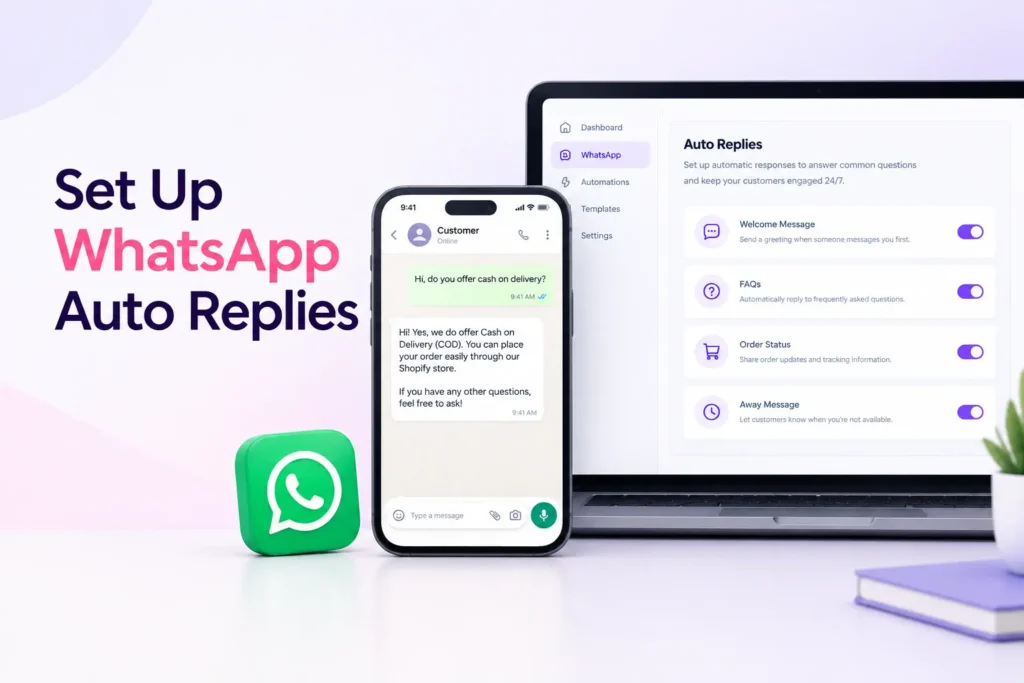
Table of Contents
Imagine a customer places an order on your online store at 11 PM. They want to know whether the order has been received, when it will be shipped, and how they can track it. But your team has already finished work for the day.
By the time someone checks WhatsApp the next morning, the customer may have sent three messages, cancelled the order, or bought from another store.
This is where WhatsApp automation can make a real difference.
Instead of replying to every message manually, you can set up automatic greetings, order confirmations, customer support replies, delivery updates, and follow-up messages. Your customers receive useful information at the right time, and your team spends less time answering the same questions.
In this guide, we will explain how to automate WhatsApp messages, which options are available for free, and how businesses can build a more reliable messaging process without making customer communication feel robotic.
What Is WhatsApp Message Automation?
WhatsApp message automation means setting up messages that are sent automatically when a specific event happens or a customer takes an action.
For example, a customer might receive an order confirmation immediately after placing an order. Someone who messages your business after working hours could receive an automatic reply explaining when your team will respond.
The difference is simple: instead of remembering to send every message yourself, you set up the rules once and let the system handle repetitive communication.
Depending on the tools you use, WhatsApp automation can help with:
- Greeting new customers and responding outside business hours.
- Confirming online orders and collecting customer responses.
- Sending order and shipping updates.
- Answering frequently asked questions.
- Following up with customers who leave their checkout incomplete.
- Sharing promotions with customers who have agreed to receive them.
- Collecting feedback after a purchase.
Not every WhatsApp tool supports all these features. The WhatsApp Business app is useful for basic replies, while more advanced workflows usually require the WhatsApp Business Platform or a compatible automation tool.
Why Should Businesses Automate WhatsApp Messages?
For many businesses, WhatsApp is where customers ask questions before buying, check their orders, and request help after a purchase. Managing every conversation manually becomes difficult as message volume grows.
Here are some practical ways automation helps.
1. Respond to Customers Faster
Customers do not always contact you during business hours. An automatic greeting or away message lets them know their message has been received and tells them what to expect next.
For example:
“Hi! Thanks for contacting us. Our team is currently offline, but we have received your message. We will get back to you during our business hours.”
It is a small change, but it helps customers understand what is happening instead of wondering whether anyone has seen their message.
2. Reduce Repetitive Work
Think about how often customers ask the same questions:
- What is the delivery time?
- How can I track my order?
- Do you offer cash on delivery?
- What is your return policy?
- Is this product available in another size?
Answering each question individually takes time. Saved replies or an automated support workflow can handle common questions so your team can focus on cases that need personal attention.
3. Keep Customers Informed About Orders
Online stores can use WhatsApp to send order confirmations, shipping updates, and other useful notifications.
For cash-on-delivery businesses, an order confirmation message can also ask customers to confirm or cancel their purchase. This gives merchants an opportunity to identify unwanted or incorrect orders before dispatch.
4. Follow Up on Incomplete Purchases
A customer may add products to their cart, enter their details, and leave without completing checkout. A suitable reminder may bring them back to finish the purchase.
However, abandoned checkout automation requires a connected store or another system that can detect the incomplete checkout. A basic greeting or away message cannot do this on its own.
5. Make Customer Support Easier to Manage
When conversations become difficult to handle, a connected support system can organize enquiries, answer common questions, and direct more complicated requests to a human agent.
The goal is not to remove people from customer service. It is to make sure your team does not spend the entire day answering questions that could have been handled automatically.
How to Automate WhatsApp Messages for Business
The best setup depends on your business size, messaging needs, and budget. You can begin with simple features in WhatsApp Business or connect a more advanced automation solution.
Method 1: Use the Free WhatsApp Business App
If you run a small business, a local shop, or a service-based company, the WhatsApp Business app is a good place to start.
It includes built-in features for greeting messages, away messages, and quick replies. These features can help you manage common conversations without paying for a separate automation platform.
Step 1: Install WhatsApp Business
Download WhatsApp Business from your device’s official app store and set up your business profile.
Add your business name, description, contact details, opening hours, and other relevant information. A complete profile helps customers understand who they are contacting.
Step 2: Set Up an Automatic Greeting
Open WhatsApp Business and navigate to the business tools or settings area. Find the Greeting Message option.
Enable the feature, write your greeting, choose the recipients, and save your settings.
You could use a message like this:
“Hi {{customer name}}! Thanks for reaching out to us. How can we help you today? You can ask us about our products, delivery options, or current orders.”
Keep the greeting short and useful. Avoid promising an immediate human response if your team cannot provide one.
Step 3: Create an Away Message
Find Away Message in your business tools and turn it on.
Choose when the message should be sent, such as outside your business hours or during a custom schedule. Enter a short reply that explains when customers can expect a response.
For example:
“Thanks for your message! Our team is currently unavailable. We are open Monday to Saturday, from 10 AM to 7 PM, and will respond as soon as we are back.”
Make sure the hours in your message match your actual business schedule.
Step 4: Save Quick Replies
Quick replies let you save frequently used messages and insert them into chats using shortcuts.
You might save replies for delivery charges, payment methods, return policies, product availability, and tracking instructions.
For example, create a shortcut such as /delivery for your standard delivery information.
Remember that quick replies are not fully automatic: you still select and send them when needed. They simply make manual replies faster.
These three features are a practical starting point if you want to learn how to automate WhatsApp messages for free.
Method 2: Use the WhatsApp Business Platform for Advanced Automation
The free app has limitations when you need messages to be triggered by events in another system, manage a larger volume of conversations, or support multiple team members.
For those requirements, businesses can use the WhatsApp Business Platform, including the official Cloud API, either through their own development work or a compatible service provider.
This approach can connect WhatsApp messaging with your store, CRM, or customer support system.
The basic process looks like this:
- Set up the required WhatsApp Business Platform account and phone number.
- Connect the platform to your store or business system.
- Decide which events should trigger a message.
- Configure message templates where required and submit them for approval.
- Test the workflow using sample customer interactions.
- Monitor message delivery, customer responses, and errors.
For example, a Shopify merchant could set up an automation that sends an order confirmation when a new order is created. The customer can then respond using the supported interaction options, and the system can record the result against the order.
The important point is that the API provides messaging capabilities; the connected application or custom integration supplies the business logic that determines when messages should be sent.
Method 3: Connect a WhatsApp Automation Tool to Your Online Store
If you run a Shopify store and do not want to build the entire integration yourself, a compatible WhatsApp automation app can make the process easier.
Look for a tool that supports the specific workflows you need, rather than choosing one based only on the number of features it advertises.
Depending on the application, you may be able to automate:
- Order confirmation messages after checkout.
- Confirm and cancel responses for cash-on-delivery orders.
- Abandoned checkout reminders.
- Shipping and delivery notifications.
- Post-purchase review requests.
- Customer questions about products, orders, and store policies.
- Customer support through an integrated chat widget.
For example, Haleria AI Sales & Support is designed for Shopify merchants who want to connect WhatsApp messaging with sales and support workflows. Its capabilities include WhatsApp order confirmation, abandoned checkout reminders, customer support automation, and phone-call confirmation options.
Before choosing an app, check whether the required feature is included in your plan, whether your store and country are supported, and whether additional messaging charges apply.
If you are evaluating Haleria, start with the workflows that take the most time in your store. For a cash-on-delivery business, that might be order confirmation. For a store receiving many product enquiries, automated support may be the better first step.
How to Automate Sending WhatsApp Messages Automatically
Once you have selected a suitable tool, the next step is to decide what should trigger each message.
An effective automation is built around a clear event, a useful message, and an appropriate next action.
1. Choose the Event That Triggers the Message
A trigger is the event that tells your system to send a message.
Examples include:
- A customer sends your business its first message.
- A new order is placed.
- An order is shipped.
- A customer leaves checkout incomplete.
- An order reaches a delivered status.
- A customer requests product information.
Choose events that genuinely help customers rather than sending messages simply because the system can.
2. Write a Message That Sounds Like Your Business
An automated message should be clear, friendly, and relevant to the customer.
Instead of writing:
“Your transaction has been successfully processed by our automated order management system.”
Try:
“Hi Ayesha, we have received your order #1048. We will share an update when it is ready to ship.”
Where supported, use verified order details and customer information from your connected system. Test variable fields carefully so customers do not receive blank names, incorrect order numbers, or outdated information.
3. Add a Clear Next Step
Some messages only need to provide information. Others should invite the customer to take action.
For example, an order confirmation message might offer supported Confirm and Cancel buttons. A support reply could ask the customer to share an order number. A delivery update might provide a tracking link.
The next step should be obvious and relevant.
4. Test the Automation Before Launching It
Place a test order or use a test contact to check what happens from the customer’s point of view.
Confirm that:
- The correct message is sent.
- Customer and order details are accurate.
- Buttons and links work as expected.
- The automation does not send duplicate messages.
- Replies are recorded correctly.
- Failed messages can be identified.
- Customers can reach a human when needed.
A workflow that sends the wrong message automatically can create more problems than it solves, so testing is essential.
5. Review Performance Regularly
After launch, check delivery rates, customer replies, failed messages, and the effect on your team’s workload.
For an order confirmation workflow, you could compare the number of orders confirmed, cancelled, and left unanswered before and after automation.
For abandoned checkout reminders, track completed purchases that follow the reminder instead of assuming every recovered order was caused by WhatsApp.
Use the results to improve your message timing, wording, and workflow rules.
How to Automate WhatsApp Messages for Free
You do not always need a paid tool to begin.
If you are a freelancer, small business owner, or local retailer, start with the free features available in WhatsApp Business.
What You Can Do for Free
Automatic greetings: Welcome customers when they contact your business under the supported conditions.
Away messages: Let customers know when your team is unavailable.
Quick replies: Save common answers and insert them using shortcuts.
Business profile: Display your business details, opening hours, and other useful information.
These features can make everyday conversations easier to manage without setting up a full automation system.
What Usually Requires a More Advanced Setup?
Automations that depend on events outside the WhatsApp conversation often need a connected platform, integration, or application.
Examples include automatically confirming Shopify orders, recovering abandoned checkouts, sending store-triggered notifications, and connecting conversations with order records.
The total cost depends on the provider, the plan, the number and type of messages, and any applicable Meta messaging charges. Some tools offer free plans or trials, but that does not necessarily mean every feature or every message is free.
If you are comparing options, calculate the total cost of the software and messaging rather than looking only at the advertised subscription price.
WhatsApp Business App vs WhatsApp Business Platform
Both options are useful, but they solve different problems.
| Feature | WhatsApp Business app | WhatsApp Business Platform |
|---|---|---|
| Greeting messages | Yes | Depends on the connected solution |
| Away messages | Yes | Depends on the connected solution |
| Saved quick replies | Yes | Depends on the connected solution |
| Store-triggered order updates | Not natively as a full store workflow | Possible with an integration |
| Abandoned checkout reminders | Not natively | Possible with a suitable integration |
| Custom automated workflows | Limited | More flexible |
| Setup | Simple | Requires platform setup or a provider |
| Cost | Free app | Provider, software, and messaging costs may apply |
The Platform does not automatically provide every feature listed in the table. The actual capabilities depend on the API integration or application you choose.
For official details, review the WhatsApp Business Platform documentation.
Important WhatsApp Automation Rules to Know
Automation should help customers, not overwhelm them. Before sending messages at scale, understand the relevant platform requirements.
Get Permission Before Sending Business-Initiated Messages
Use appropriate customer consent and follow WhatsApp’s business messaging policies. Do not assume that having someone’s phone number automatically gives you permission to send promotional WhatsApp messages.
Explain what customers are signing up for and respect requests to stop receiving messages.
Use Approved Templates When Required
On the WhatsApp Business Platform, business-initiated messages generally require approved templates. Replies to customer-initiated conversations can use the applicable customer service window and messaging rules.
Check the current WhatsApp Business Messaging Policy before configuring your workflows.
Make It Easy to Reach a Human
Automated support should not trap customers in an endless series of irrelevant replies.
Provide a clear way to contact a team member, especially for payment problems, delivery disputes, refunds, and complaints. Make sure your team can access the information needed to continue the conversation.
Protect Customer Information
Only collect and use information necessary for the purpose of your messaging workflow. Limit access to customer data, review your connected applications, and follow applicable privacy requirements.
Check Costs and Quality Before Scaling
Review the provider’s charges and applicable Meta fees before launching bulk campaigns or high-volume notifications. Monitor message quality and customer feedback, and avoid sending repetitive or irrelevant messages.
Common WhatsApp Automation Mistakes to Avoid
Even a well-designed automation can frustrate customers if the details are overlooked.
Sending too many messages: A customer who receives a confirmation, reminder, promotional message, and follow-up within a short period may feel overwhelmed. Set sensible frequency limits.
Using generic replies for every situation: A shipping question and a refund complaint need different responses. Route complex enquiries to a person.
Ignoring failed messages: A message can fail because of an incorrect number, a delivery issue, or a configuration problem. Monitor errors and provide another way to contact your business.
Forgetting to test order data: Check that the right order number, total, product, and customer information appear in each message.
Assuming every automation is free: Software subscriptions, provider charges, and applicable messaging fees can affect your overall cost.
Treating an automated message as proof of delivery: Sending a notification is not the same as confirming that the customer has read it or that an order has been delivered. Use reliable status information from your connected systems.
Final Thoughts
Learning how to automate WhatsApp messages does not mean you need to automate every customer interaction on day one.
Start with one task that takes too much time. It might be greeting new customers, answering delivery questions, or confirming cash-on-delivery orders. Set it up, test it carefully, and measure whether it actually makes work easier.
If your business only needs basic replies, the free WhatsApp Business app may be enough. If you need order-based messages, abandoned checkout reminders, or connected customer support, explore the WhatsApp Business Platform and compatible automation tools.
The best setup is the one that saves your team time while giving customers clear, timely, and helpful communication.
For Shopify merchants who want to automate sales and support conversations, Haleria AI Sales & Support is one option to explore. Choose the workflow that addresses your biggest operational problem first, then expand as your business grows.
Frequently Asked Questions About WhatsApp Automation
1. How do I automate WhatsApp messages for my business?
You can start by using WhatsApp Business greeting messages, away messages, and quick replies. If you need messages triggered by orders, customer activity, or other business events, use the WhatsApp Business Platform with a suitable integration or automation tool.
2. How to automate WhatsApp messages for free?
Download the WhatsApp Business app and enable greeting and away messages in its business tools. You can also create quick replies for frequently asked questions. These features are useful for basic communication, although advanced workflows may require a paid tool or integration.
3. Can I automate sending WhatsApp messages without coding?
Yes. Many WhatsApp automation providers offer visual dashboards where you can configure triggers, message templates, and workflows without writing code. Check that the provider supports your required use case, business account, and region.
4. Can WhatsApp automatically send order confirmation messages?
Yes, a suitable WhatsApp Business Platform integration can send an order confirmation when a new order is placed. For an online store, the integration can also allow customers to confirm or cancel their orders through supported interactions.
5. Can I automate WhatsApp messages on Shopify?
Yes. You can connect Shopify to a compatible WhatsApp automation app or a custom integration. Depending on the solution, you may be able to automate order confirmations, shipping updates, abandoned checkout reminders, and customer support.
6. Is WhatsApp message automation free?
Basic greeting messages, away messages, and quick replies are available in the free WhatsApp Business app. More advanced automation may involve a software subscription, provider fees, or applicable Meta messaging charges. Always check the current pricing before choosing a solution.
7. Is WhatsApp automation safe for my business number?
Using the official WhatsApp Business Platform and following its policies is the appropriate approach for business messaging. However, no platform or provider can guarantee that an account will never face restrictions. Follow consent requirements, use approved templates where required, and avoid spam or prohibited messaging practices.
8. Can WhatsApp automatically reply to every customer question?
Basic automatic messages cannot answer every question. More advanced solutions can use configured responses, business information, or AI-powered support to answer a wider range of enquiries. Complex questions should be passed to a human agent when necessary.
9. Can I schedule WhatsApp messages to be sent later?
Scheduling depends on the tool you use. Some automation platforms support scheduled messages and campaigns, while the basic WhatsApp Business app focuses on greetings, away messages, and quick replies rather than a full scheduled-messaging system.
10. What is the best WhatsApp automation tool for Shopify?
The best tool depends on what you want to automate. Compare order confirmation, abandoned checkout recovery, customer support, integration quality, pricing, reporting, and official WhatsApp Business Platform support. Shopify merchants can explore Haleria AI Sales & Support if they need connected sales and customer support workflows.